
SavePrompt in a Chrome Extension: Capture Winning Prompts Without Breaking Flow
Learn a practical SavePrompt workflow using a prompt manager Chrome extension. Capture great prompts in the moment, reuse them with -keywords, and build a local-first prompt library you actually own.
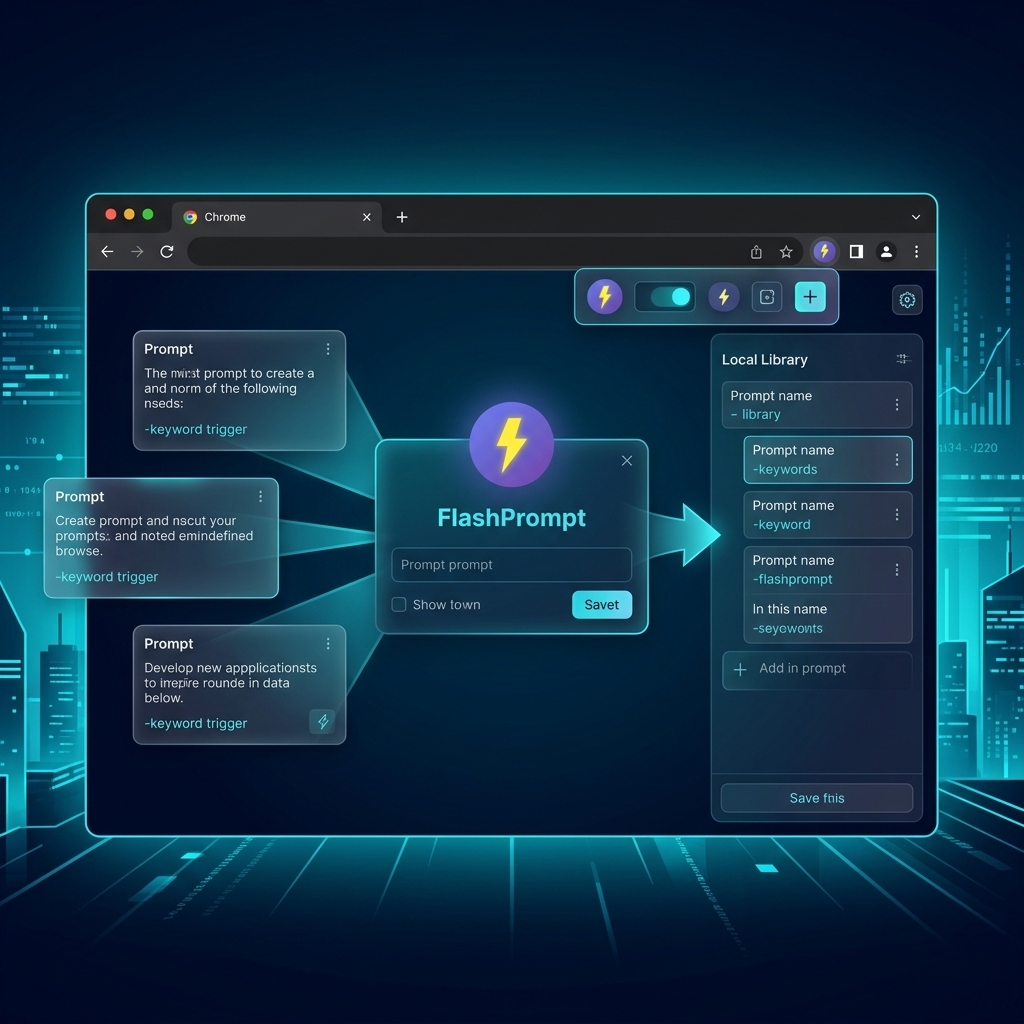
If you’ve ever copy-pasted the same “perfect” instruction into ChatGPT, Claude, or Gemini for the tenth time, you’ve already discovered the problem: your best prompts are scattered across tabs, notes, and chat history. The fix isn’t “try to remember better.” The fix is to build a repeatable saveprompt workflow.
That’s where a prompt manager Chrome extension becomes a force multiplier. You capture prompts at the moment they prove valuable, store them locally, and reuse them in any text box with a fast trigger (like -keywords). No tab switching. No fragile note documents. No “I swear I had a better version of this prompt last week.”
This guide shows a practical, developer-friendly approach to SavePrompt—using a Chrome extension workflow that turns prompts into reusable assets you can search, share, and iterate on.
Why “saveprompt” is the new power-user muscle
In 2026, prompts aren’t just questions. They’re compact specifications:
- A persona (“Act as a senior backend engineer”)
- Constraints (“Don’t change public APIs, keep diffs small”)
- Formatting rules (“Return a checklist plus the exact command to run”)
- Examples (“Here’s an input/output pair that matters”)
When you don’t save them, you pay a hidden tax:
- You retype and re-remember.
- You introduce drift (small word changes produce different results).
- You fail to compound your own improvements over time.
The saveprompt habit is how you shift from “prompting as conversation” to “prompting as a library.”
The SavePrompt loop: Capture → Label → Reuse
The simplest workflow that scales looks like this:
- Capture the prompt that worked (or a chunk of text worth turning into a template).
- Label it with a keyword and short description you can recall.
- Reuse it in-context, without leaving the tab you’re working in.
- Refine it after real usage (version the idea, even if informally).
A prompt manager Chrome extension is the tool that makes steps 1–3 frictionless.
What a prompt manager Chrome extension changes
A dedicated Chrome extension does two things notes apps can’t do well: it reduces capture friction and it reduces reuse friction.
1) Capture without context switching (the core SavePrompt advantage)
The hardest part of saving prompts is timing. You discover a great prompt mid-task—while reading a GitHub issue, answering support, or drafting an RFC—and your brain doesn’t want to open a separate app.
With FlashPrompt, a common “SavePrompt” flow is:
- Highlight text on a page (a great instruction, a policy snippet, a checklist).
- Trigger the save UI directly on the page.
- Assign a keyword you’ll actually type later.
The result: prompt creation happens in the moment, not “later when I remember.”
2) Reuse anywhere with -keywords
The second half of the loop is fast insertion. A prompt manager Chrome extension can watch input fields (including modern contenteditable editors) and expand a trigger into a full prompt.
For example:
- You type
-review-prin a PR comment box. - The extension replaces it with your structured “PR review” prompt.
This is why the Chrome extension model wins: it meets you inside the tools you already use.
3) Local-first storage (privacy and ownership)
A serious chrome extension prompt manager should be local-first by default. Your prompt library often contains:
- Internal architecture details
- Company-specific patterns
- Client context
- Reusable “house style” language
FlashPrompt stores prompts in the browser (Chrome local storage), so your library stays on your machine unless you explicitly export it. This is also where the “Pay Once, Use Forever” model matters: your workflow shouldn’t depend on a monthly subscription just to access the prompts you authored.
A keyword system that scales past 100 prompts
Most prompt libraries fail at 30–50 prompts because naming becomes chaos. A simple convention makes retrieval automatic.
Here’s a proven format for a prompt manager Chrome extension keyword system:
- Use verbs first:
-draft-…,-fix-…,-review-…,-explain-… - Add a scope:
-review-pr,-fix-types,-draft-email,-explain-error - Prefer kebab-case and keep it short (your fingers will thank you)
- Create “starter packs” per role (dev, PM, support) instead of one giant list
Example keyword set for developers:
-debug-log(analyze an error log and propose next steps)-review-pr(review changes with security + correctness + performance lens)-write-test(generate tests with edge cases and minimal mocking)-refactor-safe(suggest a refactor plan with small diffs)-explain-eli5(turn complex docs into a simple mental model)
Three high-ROI SavePrompt templates (copy/paste)
Below are three templates you can save today. They’re designed to work well when inserted quickly from a Chrome extension.
1) “Patch-first” code review prompt
Use when you want actionable diffs instead of essays.
Act as a senior engineer. Review the code below.

Goals:
1) Identify correctness bugs and edge cases
2) Call out security and privacy risks
3) Suggest performance improvements only if they are meaningful

Output format:
- Findings (bullets)
- Proposed patch (minimal diff, explain tradeoffs)
- Tests to add (bullets)

Code/context:
{paste here}
2) “Convert to reusable template” prompt (SavePrompt accelerator)
Use when you have a good one-off prompt and want a reusable version.
Rewrite this prompt into a reusable template.

Rules:
- Replace specific nouns with variables in {curly_braces}
- Keep the template short, but include the critical constraints
- Provide 3 example variable fills

Prompt:
{paste your prompt}
3) “Decision memo” prompt (fast documentation)
Use when you need a one-page record of a decision.
Write a concise decision memo.

Include:
- Context
- Options considered (at least 2)
- Decision
- Why this decision
- Risks and mitigations
- Follow-ups / owners

Constraints:
- Max 350 words
- Use crisp bullets where possible

Notes:
{paste notes}
SavePrompt anti-patterns to avoid
Saving everything creates noise. Save the things that will pay you back.
Avoid these traps:
- Saving raw chat logs: Save the reusable instruction, not pages of context.
- Overfitting to one incident: If it only works for a single ticket, it’s not a template yet.
- Unsearchable names:
-misc2will betray you. Use verbs + scopes. - No “definition of done”: Add output format rules so results are consistent.
A 7-day plan to make SavePrompt automatic
You don’t need to migrate your entire brain in a weekend. Use a small plan that compounds:
- Day 1: Save 5 prompts you already repeat weekly.
- Day 2: Create a keyword naming convention (verbs + scopes).
- Day 3: Add 5 “format enforcers” (JSON-only, checklist, patch-first).
- Day 4: SavePrompt two prompts from real work (not from imagination).
- Day 5: Delete or rename anything you can’t recognize instantly.
- Day 6: Add one “meta prompt” that converts one-offs into templates.
- Day 7: Review usage stats and promote your top 10 into a “core pack.”
Wrap-up: build prompts you can reuse (and own)
The promise of a chrome extension prompt manager isn’t novelty—it’s compounding. Every time you capture a winning prompt, you reduce future work. Every time you reuse a template, you standardize quality.
If you want a fast, local-first prompt manager Chrome extension built around the SavePrompt loop, try FlashPrompt. It’s Pay Once, Use Forever (Lifetime Access), so you keep ownership of the workflow you’re building.
Related guides
Prompt Manager Chrome Extension Checklist: 12 Features That Actually Matter in 2026
Choosing a prompt manager Chrome extension? Use this checklist to evaluate SavePrompt capture, -keyword expansion, local-first storage, imports, and ownership-friendly pricing.
Chrome Extension Prompt Manager Workflow: From -Keywords to a Personal Prompt OS
A step-by-step workflow for a chrome extension prompt manager: design your -keyword system, SavePrompt great prompts from real work, and build a reusable library for ChatGPT, Claude, Gemini, and more.
Why Every Developer Needs a Prompt Manager Chrome Extension in 2026
Discover how a prompt manager Chrome extension can revolutionize your coding workflow. Learn about the benefits of local storage, instant access, and seamless integration with AI tools.
Ready to reuse these prompts?
Save the prompts from this guide in FlashPrompt, or start from a ready-made example in the prompt library.