
Save Prompt Templates With Variables: 2026 Workflow
Learn to save prompt templates with variables, assign keyword shortcuts, and reuse prompts across ChatGPT, Claude, and Gemini without copy-paste friction.
The biggest productivity unlock in 2026 isn't "better prompts."
It's reusable prompts -- saved as templates, inserted by keyword, and customized with variables in seconds.
If you do any repeatable work (content, code review, customer support, recruiting, research), you're probably rewriting the same instructions again and again:
- "Use a concise tone."
- "Give me a table."
- "Ask questions if something is missing."
- "Include next steps."
That repetition is the signal that you need a system to save prompt templates and actually reuse them.
This guide shows how to build prompt templates with variables (placeholders), how to name them, and how to manage prompts so they stay usable over time.
What Is a Prompt Template (and Why Variables Matter)
A prompt template is a prompt designed to be reused.
The difference between a prompt and a template is variables:
- Prompt: "Write a blog post about email deliverability."
- Template: "Write a blog post about {topic} for {audience} in a {tone} tone."
Variables make your templates flexible, so you can reuse them across projects without editing a massive block of text each time.
For SEO, this also maps to real long-tail behavior. People don't search for "prompts" in general -- they search for:
- "save prompt templates for ChatGPT"
- "prompt template variables"
- "prompt shortcuts for AI"
- "prompt manage templates for teams"
Templates with variables are how you deliver that promise.
The 5 Rules of Great Variable-Based Templates
Rule 1: Keep variable names human
Use names you can fill in without thinking:
{topic},{goal},{audience},{format},{constraints},{examples}
Avoid:
{x1},{paramA},{stuff}
Rule 2: Separate "inputs" from "constraints"
Inputs change every run; constraints are stable.
Bad template: "Write about {topic} and make it short and don't use jargon and include bullets and also ..."
Better template:
- Inputs:
{topic},{audience} - Constraints: "No jargon. Use bullets. Max 300 words."
Rule 3: Make output format explicit
Most "prompt amnesia" happens because output formatting gets forgotten.
Include clear output contracts:
- "Return Markdown."
- "Include a 2-column table."
- "Return valid JSON matching this schema..."
Rule 4: Add a "clarifying questions" line
If a template is reused, it will eventually be used with missing context.
Add: "If any required input is missing, ask up to 3 questions before starting."
Rule 5: Save templates as keywords, not documents
If your reuse mechanism is copy/paste, your templates will decay.
Keyword insertion (type a trigger, expand in place) is what turns templates into real workflow primitives.
The Keyword System: The Fast Way to Save Prompt Templates
When you save prompt templates, your keyword naming does 80% of the work.
Use:
- + [task] + [output]
Examples:
-brief-table-rewrite-clear-email-reply-pr-review-seo-outline
Make keywords:
- short (8-16 characters)
- predictable (same prefix family)
- consistent (avoid mixing hyphens/underscores randomly)
This is the simplest way to "prompt manage templates" without building a complicated taxonomy.
7 High-ROI Prompt Templates With Variables (Copy/Paste)
These are designed to work across ChatGPT, Claude, Gemini, and any LLM UI.
1) SEO Blog Outline Template
Use keyword: -seo-outline
Template:
- Topic:
{topic} - Audience:
{audience} - Target keyword:
{keyword} - Word count:
{word_count}
Instructions: "Create an SEO blog outline for {topic}. Use {keyword} naturally in headings. Include H2 sections, suggested FAQs, and a short meta description. Output Markdown."
2) Rewrite for Clarity
Use keyword: -rewrite-clear
Template: "Rewrite the text below for clarity and brevity. Keep the meaning. Target reading level: {reading_level}. Tone: {tone}. Output the rewritten text and 3 bullet suggestions."
3) Comparison Table Builder
Use keyword: -compare-table
Template: "Compare {option_a} vs {option_b} for {use_case}. Output a table with columns: Feature, {option_a}, {option_b}, Recommendation. Then give a 5-bullet summary."
4) PR Review Checklist
Use keyword: -pr-review
Template: "Review this change for correctness, edge cases, performance, and security. If context is missing, ask questions. Output: (1) high-risk issues, (2) medium issues, (3) quick wins, (4) test suggestions."
5) Customer Support Reply (Policy-Safe)
Use keyword: -support-reply
Template: "Write a customer support reply to this message: {message}. Goals: be empathetic, solve the issue, and avoid overpromising. Constraints: no refunds unless explicitly allowed. Output: email reply + 3 follow-up questions."
6) Meeting Notes to Action Items
Use keyword: -notes-actions
Template: "Convert these notes into (1) summary, (2) decisions, (3) action items with owner + due date placeholders, (4) risks. Notes: {notes}"
7) Research Brief (Decision-Ready)
Use keyword: -research-brief
Template: "Create a decision brief on {topic}. Include: context, options, tradeoffs, recommendation, and what would change your mind. Output Markdown with headings."
How to Manage Prompts So Templates Don't Rot
Saving templates is step one. The harder part is keeping them useful.
Do these three maintenance actions:
- Refactor "mega prompts" into fragments: tone, format, and QA blocks reused across many templates.
- Track winners: if a template is used weekly, pin it or mark it as "core".
- Retire duplicates: when two templates overlap, merge them and keep one canonical keyword.
This is prompt management as a system: you're not collecting prompts, you're managing a toolkit.
Why a Chrome Prompt Manager Makes Variable Templates Practical
Variable-based templates only save time if insertion is effortless.
If your tool forces you to:
- open a document
- copy
- paste
- edit placeholders manually
...then the template still has friction.
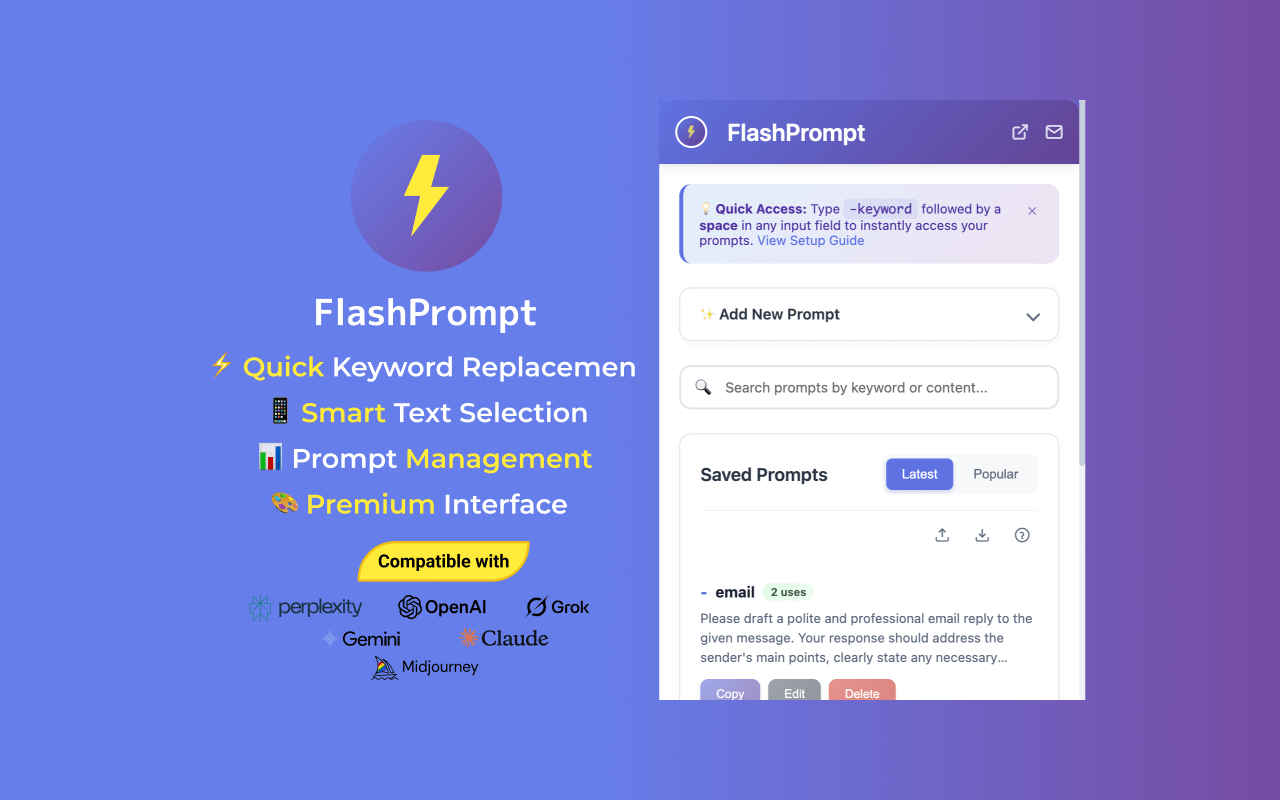
A Chrome prompt manager like FlashPrompt is built for this:
- save prompt templates as keywords
- insert them into any textbox instantly
- keep the library local-first (fast and private)
That's how "save prompt templates" becomes a daily habit instead of an occasional organizational project.
References
Related Reading
- How to Save Prompts in ChatGPT: The Ultimate 2026 Guide
- Save Prompt Templates ChatGPT
- Prompt Manager ChatGPT 2026
Final Takeaway
In 2026, the best prompt engineers are also prompt managers:
Save templates + add variables + insert by keyword + keep a clean library.
Do that, and your prompts stop being one-time experiments -- and become repeatable assets.
#SavePrompt #PromptTemplates #PromptManagement #FlashPrompt
Related guides
How to Save Prompt in ChatGPT with Variables: Reusable Template System for 2026
Learn how to save prompt in ChatGPT with variables so one template can handle multiple scenarios with consistent quality and faster execution.
How to Save Prompt in ChatGPT: Practical 2026 Workflow for Power Users
Learn how to save prompt in ChatGPT with a repeatable workflow. Capture, organize, and reuse high-performing prompts without losing quality or speed.
How to Save Prompt in ChatGPT with Folders: Clean Library Structure for 2026
Learn how to save prompt in ChatGPT with folders, tags, and naming rules so you can find any prompt in seconds and keep output quality consistent.
Ready to reuse these prompts?
Save the prompts from this guide in FlashPrompt, or start from a ready-made example in the prompt library.