
Save Selected Prompts in Chrome: Fast Reuse Guide (2026)
Select and save prompts from ChatGPT or any webpage, organize them with memorable keywords, and reuse them through a local-first Chrome workflow.
If you use AI every day, you already know the pain: you write a perfect prompt once, get a perfect result once, and then lose it forever.
You can scroll through chat history. You can open a Notion page. You can paste into a spreadsheet. But none of those methods solve the real problem:
Saving prompts is easy. Reusing prompts at speed is hard.
In 2026, the winning workflow is simple: selection -> save prompt -> insert by keyword. This is the difference between "I have a prompt library" and "I can actually prompt manage at scale."
This guide shows how to implement a fast save prompt workflow in Chrome, what to save (and what not to), and how to organize a prompt library that stays usable after you hit 100+ prompts.
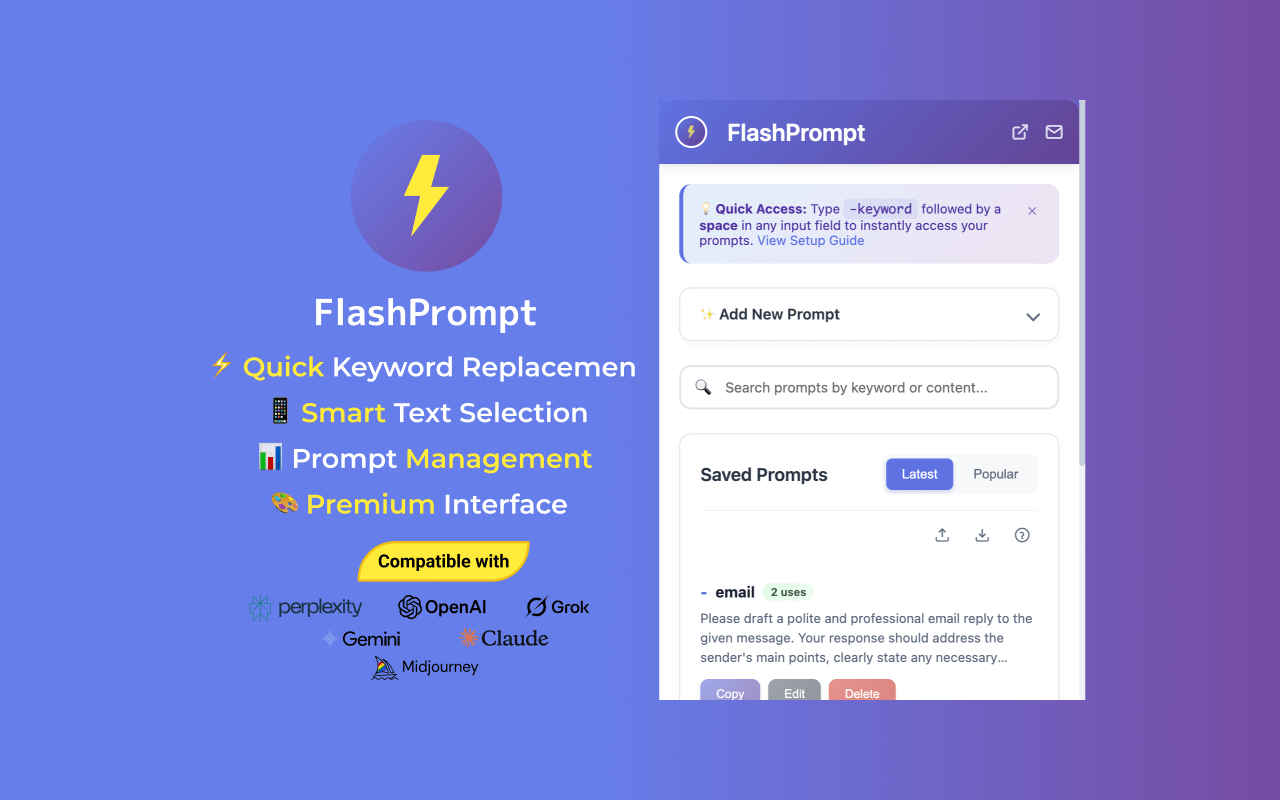
Why Selection Save Beats Copy/Paste
Most "save prompts" systems fail because of context switching. If it takes 30 seconds to save a prompt, you will stop doing it.
Here's what the typical "notes app" workflow looks like:
- Select prompt text in ChatGPT / Claude
- Copy
- Cmd+Tab to Notion/Docs
- Find the right page
- Paste
- Rename it
- Add tags
- Cmd+Tab back to the AI tool
It's not just annoying -- it breaks focus. A selection save prompt workflow compresses that into one action:
Highlight -> Use the FlashPrompt selection-save control
That single change is why Chrome prompt manager extensions are replacing "prompt docs" for power users.
The 3-Part System: Capture, Organize, Insert
You can't build a usable prompt library if you only do step 1. A real prompt management workflow has three parts:
1) Capture (Save Prompt)
Capture is the act of storing the prompt (or prompt fragment) at the moment it proves valuable.
Good capture triggers:
- You got a result you would happily pay for again
- You used the same instructions twice this week
- The prompt took you more than 2 minutes to write
- The prompt encodes a repeatable format (e.g., "weekly report", "PR review", "SEO outline")
Bad capture triggers:
- You're saving prompts "just in case"
- The prompt is mostly context ("here's my entire situation...") instead of a reusable instruction
2) Organize (Prompt Manage)
Organization is how you make future-you successful. A library of 300 unnamed prompts is not a library -- it's a junk drawer.
Minimum viable organization:
- A clear name
- A keyword trigger (so you can insert it instantly)
- Prompt content that contains enough context to find through search
3) Insert (Reuse Prompt)
Insertion is where prompt managers win. The best "save prompts" system is the one you can reuse without thinking.
With a keyword-based prompt manager (like FlashPrompt), insertion is:
- Type
-+ your keyword (example:-seo-outline) - Hit enter
- Prompt expands instantly inside the current textbox
No copy/paste. No switching tabs. No hunting.
How to Save Prompts From ChatGPT, Claude, and Any Webpage
The selection save prompt workflow works across three sources:
A) Saving prompts you wrote
When you type a prompt that works:
- Highlight your prompt text (not the AI response)
- Use the FlashPrompt selection-save control that appears on the page
- Review the captured text
- Add a keyword you will actually remember
Keyword tip: choose keywords based on jobs-to-be-done, not topics.
- Good:
-pr-review,-meeting-notes,-seo-brief - Weak:
-marketing,-dev,-random1
B) Saving prompts you discovered (prompt "recipes")
You will often find great prompts in blog posts, GitHub gists, or community libraries. Those prompts are valuable -- but only if you can reuse them quickly.
Selection saving lets you collect those "recipes" without breaking flow:
- Highlight the prompt snippet on the page
- Use the FlashPrompt selection-save control
- Add your own keyword
C) Saving prompt fragments (the secret weapon)
Most people only save full prompts. Power users save fragments:
- Tone block ("write clearly, no fluff, explain assumptions")
- Output format block (Markdown, tables, JSON schema)
- Safety / policy block (no PII, cite sources, ask before acting)
Fragments are what make prompt management feel modular. You can assemble:
-tone-clear -format-table -analysis-steps
...into one high-quality prompt, on demand.
The Fastest Prompt Manage Naming Convention (That Still Works at 500 Prompts)
If your prompt names are inconsistent, your keywords will be inconsistent, and reuse will collapse.
Use this template:
[Role] + [Task] + [Output]
Examples:
- "Recruiter - Screen candidate - Scorecard"
- "Developer - Review PR - Checklist"
- "Founder - Investor update - 5 bullets"
Then create a short keyword:
-screen-scorecard-pr-checklist-investor-update
This naming style naturally produces long-tail keywords like "prompt manager save prompt", "prompt management workflow", and "save prompts from ChatGPT" -- because the post titles and prompt names match real user intent.
Quick Comparison: Save Prompt Methods (Friction vs Speed)
| Method | Best for | Save speed | Reuse speed | Why it fails at scale |
|---|---|---|---|---|
| Chat history | casual users | Fast | Slow | hard to search; noisy context |
| Notes/Notion | collectors | Medium | Medium | tab switching; copy/paste fatigue |
| Spreadsheets | teams | Slow | Slow | great structure, terrible insertion |
| Chrome prompt manager extension | daily users | Fast | Fast | requires keywords + habits |
If your goal is to save prompt and reuse prompt dozens of times per day, the only option with low enough friction is a Chrome prompt manager workflow.
A Simple "Save Prompt" Checklist (Use This Every Time)
Before you save a prompt, ask:
- Can this be reused in a different context without rewriting everything?
- Does it have clear placeholders (topic, audience, constraints)?
- Is the output format explicit?
- Can I name it in 6 words or less?
If "yes" to most of the above, save the selected prompt and move on.
The Local-First Advantage (Privacy + Performance)
Prompt libraries often contain sensitive information:
- internal SOPs
- sales scripts
- proprietary analysis steps
- client context
That's why local-first prompt management matters. A local prompt manager stores your prompt library on your device, so you can prompt manage without uploading your "playbooks" to a third-party cloud.
FlashPrompt is built around this principle: fast keyword insertion + local storage + a selection save prompt workflow.
References
Related Reading
- How to Save Prompts in ChatGPT: The Ultimate 2026 Guide
- Best Chrome Extension Prompt Manager 2026: A Comprehensive Review
- Prompt Manager ChatGPT 2026
Final Takeaway
If you want to actually prompt manage (not just collect prompts), optimize for the fastest loop:
Capture (selection save) -> Organize (keyword) -> Insert (type keyword anywhere).
Do that for one week and you'll stop losing prompts -- because your best prompts will become reusable tools, not one-time accidents.
#PromptManagement #SavePrompt #ChromeExtension #FlashPrompt
Related guides
The Essential Guide to Chrome Extension Prompts: 2026 Edition
Master the art of 'chrome-extension-prompt' management. Learn strategies to organize, refine, and deploy your AI prompts efficiently in 2026.
Claude Prompt Manager Guide: Save and Reuse Prompts Locally
Build a reusable Claude prompt workflow with local browser storage, keyword shortcuts, selection-based saving, and manual CSV portability.
Prompt Manager Extension Guide: Save and Reuse AI Prompts
Learn how browser prompt managers work and where FlashPrompt's local storage, keyword retrieval, quick save, and CSV portability fit.
Ready to reuse these prompts?
Save the prompts from this guide in FlashPrompt, or start from a ready-made example in the prompt library.