
How to Save Prompt in ChatGPT on Mobile: Fast Workflow for iPhone and Android
Discover how to save prompt in ChatGPT on mobile with practical capture methods, shortcut habits, and template design that works on small screens.
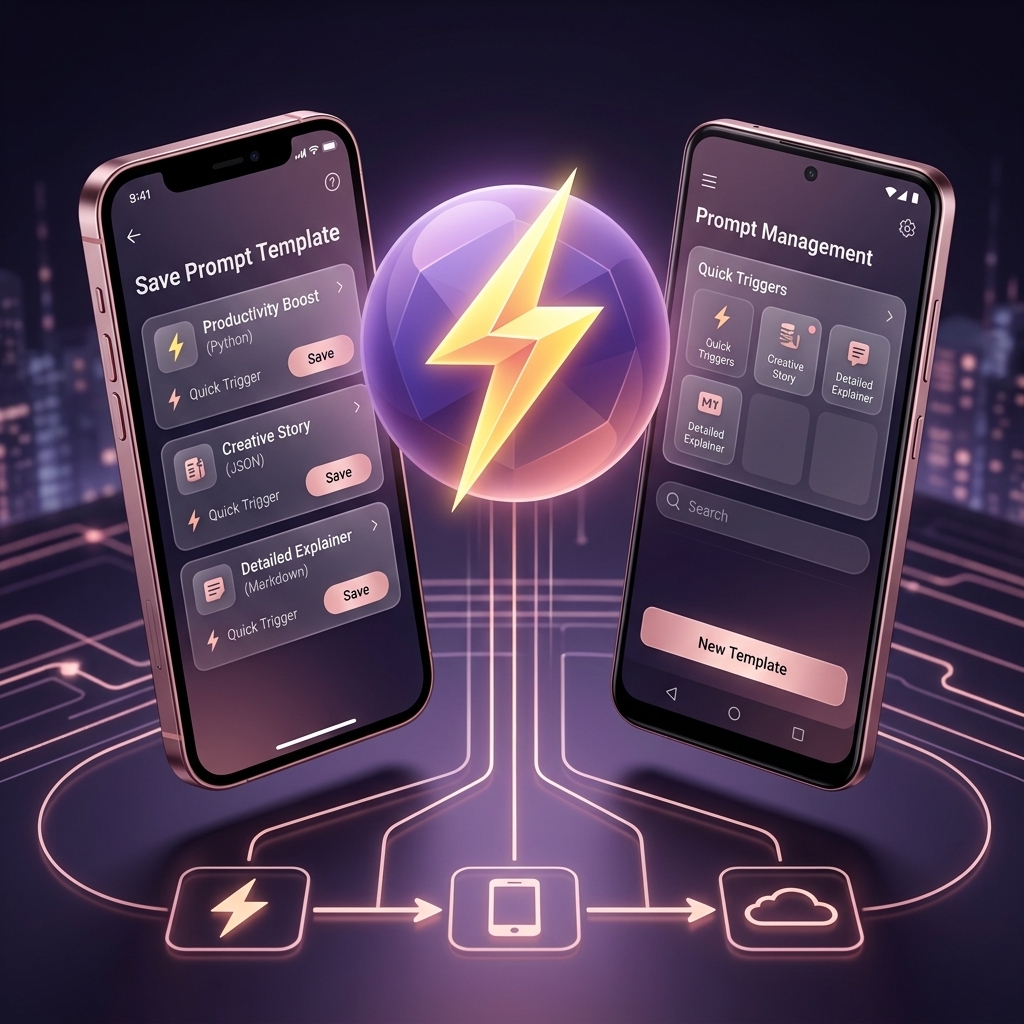
Desktop guides dominate this topic, but many real workflows now happen on phones. People draft marketing copy in transit, summarize calls right after meetings, and review notes between tasks. So the question how to save prompt in ChatGPT on mobile is not a niche use case anymore.
Mobile prompt management has different constraints:
- less screen space,
- slower text editing,
- more interruptions,
- higher need for quick recall.
This guide gives you a system designed specifically for mobile behavior.
Why mobile prompt saving fails by default
Most users try to reuse desktop habits on mobile. That usually breaks.
Common friction points:
- Long prompts are hard to edit on small keyboards.
- Switching apps adds latency and context loss.
- Copy-paste workflows are fragile under multitasking.
- Prompt names are too long to scan quickly.
If mobile reuse feels painful, the fix is not effort. The fix is shorter templates and faster triggers.
Mobile-first prompt design principles
To save prompts effectively on phone, templates must be lightweight.
Principle 1: Keep prompts modular
Instead of one giant instruction, split into smaller templates by purpose.
Examples:
summarize-noterewrite-briefaction-items
Principle 2: Reduce variable count
On mobile, fewer fields means faster execution.
Good mobile template:
{{source_text}}{{tone}}
Overloaded template:
- eight or ten variables that require too much typing.
Principle 3: Force structured output
Ask for clear sections to reduce reading time.
Example output schema:
- Key points
- Risks
- Next actions
Principle 4: Favor short triggers
Mobile triggers should be easy with one thumb.
Examples:
;sum;rw;todo
How to save prompt in ChatGPT on mobile: practical setup
Step 1: Choose 5 high-frequency tasks
Pick only tasks you perform daily or near daily.
Suggested starter set:
- meeting note summary,
- email rewrite,
- quick content draft,
- task extraction,
- message tone adjustment.
Step 2: Build compact templates
Keep each prompt under 120 to 180 words if possible.
Example:
Role: Operations assistant
Task: Convert the text into action items.
Text: {{source_text}}
Constraints:
- max 6 bullets
- include owner suggestion
- include due-date proposal
Output:
1) Actions
2) Questions
3) Priority order
Step 3: Attach short triggers
Create one consistent prefix and stick to it.
Examples:
;ops-a;mail-r;note-s
Step 4: Add one-tap capture habit
Right after a successful response, save the underlying prompt. Do not wait until later. Interruptions on mobile make delayed capture unreliable.
Step 5: Weekly cleanup
Every week:
- remove low-use prompts,
- merge duplicates,
- tighten weak templates,
- keep top 10 highly accessible.
iPhone and Android workflow tips
iPhone tips
- Use text replacement shortcuts for base triggers.
- Keep a pinned note with your top five trigger names.
- Use Focus mode during deep sessions to reduce interruptions.
Android tips
- Use keyboard clipboard history strategically for variable content.
- Pin your most-used trigger snippets.
- Use split-screen only for drafting, not for final execution.
The goal is fewer interactions per run, not more features.
Mobile taxonomy that scales
Simple categories are enough on small screens:
workcontentadminlearning
Inside each, keep only active prompts visible. Move stale items to archive monthly.
Quality control on mobile
Because mobile sessions are fast, quality can drop if templates are vague. Add hard constraints in each prompt:
- response length cap,
- required section headers,
- ban vague filler language,
- ask for assumptions when context is missing.
These controls improve first-pass usability.
Common mistakes
- Using desktop-length prompts unchanged.
- Storing prompts without trigger keys.
- No archive process.
- Editing templates during urgent tasks.
- Rebuilding prompts from memory instead of saving immediately.
If reuse rate is low, reduce complexity first.
Where FlashPrompt helps mobile-adjacent workflows
FlashPrompt is currently a Chrome and Edge extension, not a mobile prompt manager. It can help prepare prompts on desktop before a mobile session through:
- fast trigger-driven reuse in supported desktop browser text fields,
- templates with bracketed values that you replace manually,
- local-first prompt storage in the current browser profile,
- Pro CSV export and import for manual library transfer.
There is no automatic mobile sync or mobile-browser insertion. On a phone, use ChatGPT's own history or another mobile-accessible note system for the compact templates described above.
5-day mobile adoption sprint
- Day 1: define top five mobile tasks.
- Day 2: create compact templates.
- Day 3: assign short triggers.
- Day 4: run live tasks and record misses.
- Day 5: revise templates and archive weak ones.
In less than a week, you can move from random copying to repeatable mobile execution.
Final takeaway
The answer to how to save prompt in ChatGPT on mobile is a small, fast system: compact templates, short triggers, immediate capture, and weekly pruning.
If you keep prompts lightweight and operational, mobile workflows can be as productive as desktop sessions.
Related reading
Related guides
How to Save Prompt in ChatGPT: Practical 2026 Workflow for Power Users
Learn how to save prompt in ChatGPT with a repeatable workflow. Capture, organize, and reuse high-performing prompts without losing quality or speed.
How to Save Prompts in ChatGPT: The Complete Workflow Guide
ChatGPT doesn't save your prompts for you. Here's the definitive guide to saving, organizing, and instantly reusing your best ChatGPT prompts — without the copy-paste grind.
How to Save Prompt in ChatGPT Fast: Shortcut System That Scales
A speed-focused guide on how to save prompt in ChatGPT using shortcut triggers, variables, and retrieval rules for daily high-volume workflows.
Ready to reuse these prompts?
Save the prompts from this guide in FlashPrompt, or start from a ready-made example in the prompt library.